


The e-Aadhaar PDF is protected with a password to keep your personal details safe. The password is a combination of the first four letters of your name in capital letters and your year of birth. For example, if your name is Rohit and you were born in 1992, the password is ROHI1992. You can open the file on mobile or desktop using trusted PDF readers like Google Chrome or Adobe Reader. e-Aadhaar is fully valid for banks, insurance, and KYC purposes and should never be unlocked using third-party websites to avoid identity misuse.
That e-Aadhaar PDF has a habit of playing hide-and-seek right when time is short. One minute it is downloaded and ready, the next it asks for a password you cannot recall. Forms are waiting, offices are calling, and the file just sits there, locked and smug. Why does something so important come with such a small but stubborn roadblock?
A single wrong letter, an extra space, or a date typed in the wrong order is enough to stop access. This article breaks the process down in clear steps. It explains the exact password format used for e-Aadhaar in 2026, how to open the PDF on mobile and computer, and what to do when the password keeps failing. You will also learn small checks that save time and spare frustration later.
If unlocking your Aadhaar quickly sounds useful, the details below will guide you through it without the guesswork.
What Is an e-Aadhaar PDF?
An e-Aadhaar PDF is simply the digital version of your Aadhaar card. It carries the same details as the physical card. Your name, Aadhaar number, date of birth, address, photo, etc. The difference is in how you get it and how you use it.
You download e-Aadhaar online from the official UIDAI website.
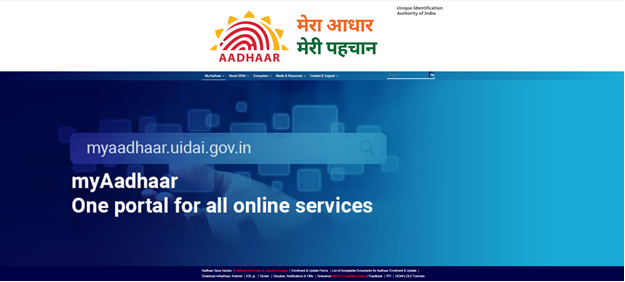
It comes as a PDF file that you can save on your phone or computer. You can print it if needed. You can also share it digitally when a physical copy is not required.
This PDF is treated as a valid Aadhaar document. Banks, insurers, and government offices accept it just like the original card. That includes insurance-related tasks like KYC, policy issuance, or updating your records. Because it contains sensitive personal data, the file does not open freely. That is where the password comes in.
What Is an e-Aadhaar PDF Password?
When you download your e-Aadhaar, the PDF is locked with a password by default. This is done to protect your identity and prevent misuse. Without the correct password, the file will not open. You cannot view, print, or share it.
The password is created using details that belong only to you. Once you know the pattern, opening the file becomes straightforward. Many people get stuck here because they are not told the password clearly during download. It leads to confusion. But the logic is simple, and once you learn it, you will not forget it.
Aadhaar Password Format Breakdown
The e-Aadhaar PDF password is made using two personal details:
- The first four letters of your name - these letters must be in capital letters. If your name has fewer than four letters, use the full name as it is, still in capital letters.
- Your year of birth - this is the four-digit year mentioned on your Aadhaar.
Both are combined to form a single password. No spaces or symbols in between. Just the name part followed by the birth year.
Example:
Let’s say the details on the Aadhaar card are:
- Name: Rohit
- Year of birth: 1992
- Then your password should be: ROHI1992
Here’s another example:
- Name: Anu (The name has only three letters, so use all of them.)
- Year of birth: 1988. Now, the password becomes:
- ANU1988
Once you enter this correctly, the e-Aadhaar PDF will open instantly. And once opened, keep the file safe. It is a powerful identity document. Just like your physical Aadhaar, it deserves careful handling.
Why is the Aadhaar PDF password protected?
Your Aadhaar has some of the most private information about you. Name, date of birth, address, your Aadhaar number. People can use this information in bad ways if it gets into the wrong hands.
That's why the e-Aadhaar PDF is password-protected as soon as you download it.
The thought is easy. If someone gets into your phone or email, they still can't open the file unless they know your personal information. Your password is linked to you, not kept somewhere else or sent by email.
This extra step keeps you safe from identity theft, fake applications, and other people using your information without your permission. It also makes it safe to store or share the document digitally when you need to.
How to Open an e-Aadhaar PDF in Steps?
It is easier to open your e-Aadhaar PDF than it seems. Most problems happen because someone forgets a small detail. It usually works the first time if you go step by step.
- Step 1
You can find the e-Aadhaar file on your computer or phone. Unless you chose a different place, it is usually saved in the Downloads folder.
- Step 2
To open the PDF, double-click it or tap it once on your phone. You will see a box where you can enter your password. This is normal.
- Step 3
Enter the password by typing: -
- The first four letters of your name should be in all caps.
- Then your birth year
- Step 4
Press the Enter key or tap Open. The file should open right away.
- Step 5
Check that your name, Aadhaar number, and address are all correct. If you want to use it for banking, insurance, or any other official purpose, it needs to be correct.
Safety Tips While Accessing e-Aadhaar
Your e-Aadhaar is not just another PDF. It is your identity in digital form. So how you handle it matters more than most people realise.
- Identity Protection Alert
Once your Aadhaar data is leaked, you cannot undo it. So a little caution goes a long way.
- Avoid Third-Party Sites
Never upload your e-Aadhaar to online PDF unlockers or password remover tools. These sites often store uploaded files. Some even reuse the data quietly. That is how identity theft starts. If a website asks you to upload Aadhaar to unlock it, close the tab.
- Stick to Offline and Trusted Tools
Use software you already trust like Google Chrome, Adobe Reader, or official government apps. These tools open the file locally on your device and do not send your data anywhere.
- Be Careful in Public Places
Downloading Aadhaar at a cyber cafe or public kiosk is risky. But if you have no choice, clean up properly before leaving. Delete the file permanently. Clear browser history. Log out of email. Do not rush this step.
- Use Masked Aadhaar When Possible
For basic checks like hotel stays or routine KYC, a Masked Aadhaar is a safer option. It hides the first eight digits of your Aadhaar number while keeping the document valid. Less exposure. Less risk.
Small habits like these keep your identity safe in the long run.
How to Download an Aadhaar Card with Password?
The password part is automatic. You do not create it separately. Here is how the download usually works:
Visit the official UIDAI website and choose the option to download Aadhaar. Enter your Aadhaar number or Enrolment ID. Verify using the OTP sent to your registered mobile number. Once verified, you download the file. That file is already password protected.
Benefits of e-Aadhaar Card
Let’s take a look at some of the benefits:
- The biggest benefit is convenience. You do not need to carry a physical card everywhere. The e-Aadhaar stays on your phone or laptop, ready when needed.
- Banks, insurers, and government offices accept it. That includes digital KYC while buying insurance or updating policy details.
- The password lock adds protection that a physical card does not have. Even if the file is shared accidentally, it cannot be opened easily.
- Insurance platforms like SMC Insurance rely on secure and verified documents to keep customer journeys smooth while working with multiple leading insurers. e-Aadhaar fits neatly into that system.
What If You Forget the Password?
This happens more often than people admit. You download the file, come back later, and the password just slips your mind. The e-Aadhaar password to open PDF is not something you set yourself. It follows a fixed pattern. First four letters of your name in capital letters. Then your year of birth.
If it still does not click, check the exact spelling of your name as it appears on Aadhaar. Even a missing letter or a different order can block access.
And if the file still refuses to open, the easiest fix is to download it again from the official website of UIDAI. The newly downloaded PDF will follow the same password format. Nothing changes there. But the file itself is fresh, which often clears hidden issues.
No need to panic. No need to contact support for this step.
e-Aadhaar PDF Password Not Working? Common Reasons
When the password does not work, it is usually something small. Here are the most common reasons:
|
Wrong letter case |
The name part must be in capital letters. Lowercase will not work. Even one letter off breaks the password. |
|
Name mismatch |
People often try nicknames or shortened names. The password only works with the name printed on Aadhaar. Not what you usually go by. |
|
Extra spaces |
Sometimes a space sneaks in at the start or end while typing. The system does not allow that. |
|
Wrong year of birth |
Double-check the year mentioned on Aadhaar. |
|
Old or corrupted file |
If the PDF was downloaded long ago or interrupted mid-download, it may not open properly. Re-downloading the file fixes this more often than expected. |
Slow down and recheck each detail. Most issues get solved right there.
Can I Change or Remove e-Aadhaar PDF Password?
Short answer - No.
The password on your e-Aadhaar PDF cannot be changed or removed. It is built into the document by UIDAI for security reasons. This design keeps things consistent and safe. No one can weaken the file by removing the password. And no one can replace it with something easier to guess. If you really need a fresh file, you can always download a new copy from the official site.
Is e-Aadhaar Without Passwords Valid?
An e-Aadhaar without a password does not really exist. Every e-Aadhaar PDF downloaded from the official UIDAI system comes password protected. That lock is part of the document. It cannot be skipped, removed, or bypassed in a valid way.
If you ever see an Aadhaar PDF that opens without a password, treat it with caution. It may have been altered or handled through unsafe tools. And that raises questions about its security.
Once you enter the correct password and open the file, the document inside is fully valid. You can print it. You can share it where required. The password is only there to control access, not to limit usage.
So yes, e-Aadhaar is valid. The password is not a weakness. It is the reason the document can be trusted.
e-Aadhaar vs Physical Aadhaar Card
Both versions serve the same purpose. But how you use them, and where they fit best, can differ. Here is a clear comparison:
|
Point of Difference |
e-Aadhaar |
Physical Aadhaar Card |
|
Format |
Digital PDF |
Plastic or paper card |
|
Access |
Downloaded online anytime |
Issued once, needs reprint if lost |
|
Security |
Password protected |
No built-in security |
|
Portability |
Stored on phone or laptop |
Needs to be carried |
|
Acceptance |
Accepted everywhere Aadhaar is valid |
Accepted everywhere Aadhaar is valid |
|
Risk if Lost |
Cannot be opened without password |
Can be misused if found |
Common Use Cases of e-Aadhaar
It is widely used for KYC. Opening bank accounts, buying insurance, updating personal details, verifying identity online, etc. Insurance platforms like SMC Insurance use Aadhaar for smooth and secure KYC while working with multiple leading insurers. A password-protected e-Aadhaar makes that process faster and safer.
It is also used for government services, subsidies, pension schemes, income-related filings, etc. Travel and accommodation checks too, especially when using Masked Aadhaar.
And sometimes, it is just about convenience. When someone asks for ID and your wallet is not around, but your phone is. That is where e-Aadhaar quietly proves its value. Simple. Secure. Always within reach.
Must-Read Guides From SMC
Summing Up,
The e-Aadhaar PDF is simple once you understand how it works. It is a valid Aadhaar document. It is safe. And it is meant to be used digitally. The password is not there to confuse you. It is there to protect your identity. Once you know the pattern, opening the file takes seconds.
Keep your Aadhaar secure, use trusted tools and treat the PDF with the same care as the physical card. That small effort saves you from bigger problems later.
Disclaimer:The information provided on this platform is intended for general awareness and educational purposes. While every effort is made to ensure accuracy, some details may change with policy updates, regulatory revisions, or insurer-specific modifications. Readers should verify current terms and conditions directly with relevant insurers or through professional consultation before making any decision.
All views and analyses presented are based on publicly available data, internal research, and other sources considered reliable at the time of writing. These do not constitute professional advice, recommendations, or guarantees of any product’s performance. Readers are encouraged to assess the information independently and seek qualified guidance suited to their individual requirements. Customers are advised to review official sales brochures, policy documents, and disclosures before proceeding with any purchase or commitment.
FAQs
Use the first four letters of your name in capital letters, followed by your year of birth. No spaces or symbols. Example:
Name ROHIT, birth year 1992
Password ROHI1992
Use your full name in capital letters, even if it has only two or three letters. Then add your year of birth. Example:
Name ANU, birth year 1988
Password ANU1988
Yes, you can open it on any smartphone using apps like Google Drive, Adobe Reader, or your phone’s default PDF viewer.
Yes, banks accept e-Aadhaar as a valid document for KYC, just like the physical Aadhaar card.
UIDAI uses password protection to keep your personal data safe. It prevents misuse if the file is shared or accessed without permission.
If the password is shared or the file is uploaded to unsafe sites, yes. That is why you should never use online PDF unlockers or share your Aadhaar carelessly.
Download the PDF on your phone. Tap to open it. Enter the password using capital letters for your name and your year of birth. The file will open instantly.


